

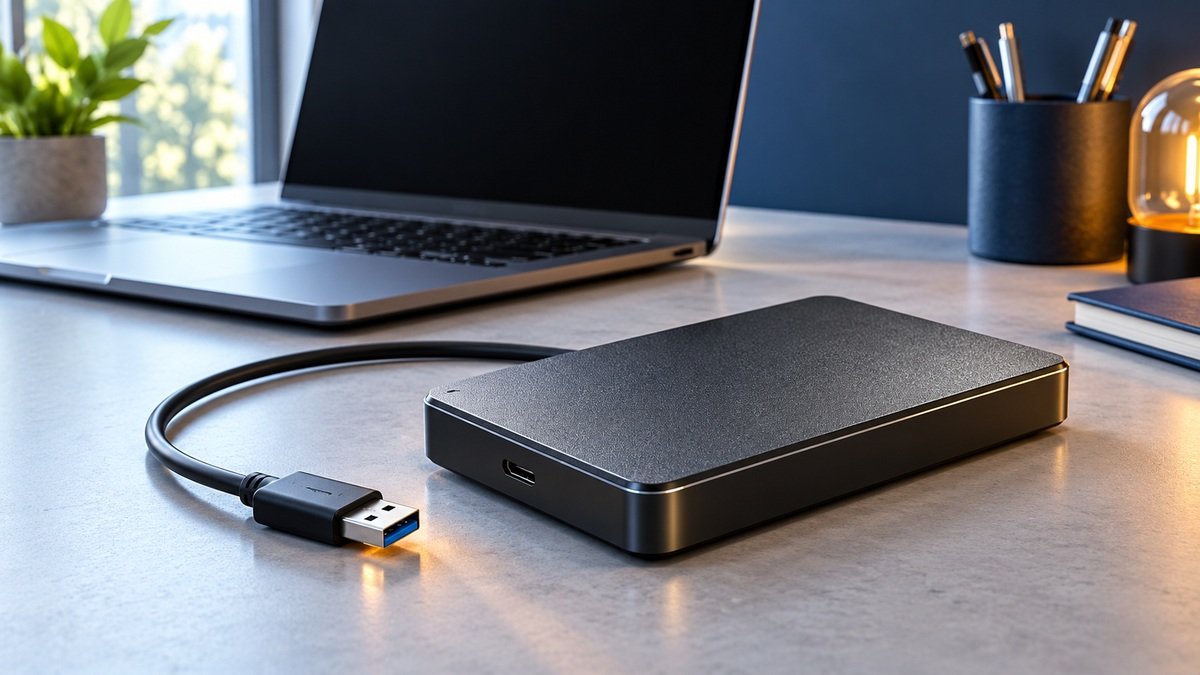
If the external drive already contains files you need, cancel the format request. Do not initialize it, create a new volume, or run repair commands before deciding how to preserve the data. If the HDD is also grinding, repeatedly hard-clicking, or disconnecting during access, stop using it and request assessment.
You connect an external hard drive and a message asks you to format it before use. That message can feel like a choice between losing the files and losing access to the drive. The first response is simpler: pause. A computer asking to prepare a disk for use is not confirming that its existing contents are gone.
What does the format prompt actually mean?
The operating system is unable to use the volume in its present state. Possible causes include an unrecognized or unsupported file system, file-system corruption, an interrupted connection or power event, or media errors. Sandisk lists these among the causes of a format request. [1] The message alone does not identify which cause applies to your drive.
A previously working drive full of important files requires a preservation decision. A genuinely empty new disk requires setup. These are different tasks, even if the operating system presents a similar-looking prompt. Tell the technician whether this exact drive worked before and on which computer.
Does RAW mean the drive is empty?
No. RAW in Windows Disk Management means the volume is not being presented as a recognized usable file system. Sandisk notes that a RAW device may still contain data that is inaccessible. [2] RAW is therefore a status to record, not a reason to assume the disk is blank.
Likewise, an unexpected capacity, missing partition, or apparent free space is not a complete recovery diagnosis. The device and the way it is being accessed need assessment. Do not create a new partition simply to make the drive appear in File Explorer.
Match the message with the drive’s behaviour
Format prompt; no new sound or disconnection
What it suggests: The volume needs an access assessment.
First response: Cancel and record the message; preserve the original.
RAW shown in Disk Management
What it suggests: Windows is not presenting a recognized usable file system.
First response: Record the status without approving changes.
Not initialized or unallocated on a previously used disk
What it suggests: Setup information or access may need investigation.
First response: Do not initialize or create a volume to recover files.
Drive works on its usual system but not a different one
What it suggests: File-system or access compatibility may matter.
First response: Record the previous operating system and format if known.
New grinding, hard clicking, or repeated access failure
What it suggests: Physical or unstable-access trouble may be involved.
First response: Stop use and request specialist advice.
The prompt appeared after changing an enclosure
What it suggests: The original enclosure or its behaviour may matter.
First response: Keep all original parts and explain the change.
The table is a response guide, not a diagnosis. If the media is unstable, do not keep reconnecting it to collect screenshots. A photograph of the existing message, the label, and a description of the incident is enough to begin an enquiry.
Your first actions when important files are inside
- Cancel the request to format, erase, or initialize. Do not approve a new volume or partition change.
- Stop applications using the affected drive. For stable media without failure signs, safely eject it. For grinding or other clear distress, stop using the drive.
- Record the error as it appeared, the device model, and whether it worked in this setup before.
- Look for separate backups from a working device. Verify the important files rather than relying on a backup folder name.
- Prepare an assessment enquiry. Mention a drop, power event, interrupted transfer, enclosure change, or previous repair if one occurred.
Seagate warns that continued use of a grinding HDD can damage its platter surface. [6] Do not run a copy, full scan, or diagnostic test on a grinding source just because a format prompt also appeared. If the drive belongs to a RAID/NAS system, involve its administrator before changing the setup.
Why formatting first is the wrong recovery shortcut
Formatting prepares a file system for further use. It is not a procedure for retrieving the previous contents. Sandisk’s RAW guidance places erasing and formatting after recovery, or when the data is no longer needed. [2] Your objective should be to preserve recoverable material before preparing the disk for reuse.
Even if a tutorial suggests formatting and then scanning, it adds a change to the original media. The result depends on what that operation did, what was written afterward, and the device’s behaviour. This article does not promise that a quick format is harmless or that the previous folder structure will survive.
Initialization is also different from recovery
Microsoft’s initialization guidance is for a new disk without existing data, and warns about initializing a disk already in use. [4] A previously used external drive labelled “not initialized” should not be treated as an empty replacement simply because that option is available.
Should you run CHKDSK or Mac First Aid?
Do not make a repair command your automatic first response when the files are important and no verified backup exists. Sandisk warns that Check Disk can cause data loss and recommends backing up to another drive first. [3] Repairing a file system and preserving a recovery source have different objectives.
Apple also recommends having a current backup before using Disk Utility to repair a storage device. [9] First Aid is a repair feature, not a guarantee of recovery from every fault. If the drive is unstable or contains your only copy, discuss a preservation approach before applying repairs.
Tell the laboratory whether a repair already ran, its name, and whether it completed. Do not hide an earlier attempt because it seemed routine. The history can change the appropriate next step.
Could this be a Windows and Mac compatibility issue?
Yes. Different operating systems do not handle every file system in the same way. Apple identifies APFS and Mac OS Extended as Mac formats, while FAT and exFAT provide Windows-compatible choices. [7] A drive moved from its usual computer to a different system can therefore need an access check rather than an immediate format.
Record the operating system on which the files were last accessible. If there is a known healthy compatible system and the media is stable, a technician may assess access there. Do not keep trying machines when the drive shows failure signs. Any change of format for future sharing should wait until the existing data is safely preserved.
Keep the original enclosure and electronics
Do not assume that removing a drive from its enclosure will make its contents readable. Some external drives use hardware encryption or depend on particular enclosure behaviour. Western Digital’s compatibility guidance notes that drives removed from some enclosures may not be readable elsewhere. [8]
This does not mean every external drive is encrypted or that every enclosure replacement prevents access. The exact model matters. Keep the original enclosure, circuit board, cable, and power supply with the case, and explain whether any part was replaced before the format prompt began. Do not open the sealed HDD assembly.
When is recovery software an appropriate option?
Software may be suitable for some logical-loss cases when the source can be read reliably and the correct method is understood. It cannot make a grinding drive mechanically healthy or guarantee access through a failing connection. Important, unstable, or unexplained cases deserve assessment first.
If software is appropriate, install it on a separate working device and save recovered files to separate healthy storage. Microsoft requires different source and destination drives for Windows File Recovery and warns against continued activity that can overwrite deleted data. [5] Do not use recovered output to refill the original source before verification.
What if you already clicked Format?
If formatting is still running, use its Cancel option if available, then leave the drive unused. Record exactly what happened: whether the operation began, completed, or was followed by new writes. Do not run it again or copy new files onto the drive. Tell the lab the operating system, the options you chose if known, and any subsequent attempts.
Formatting does not lead to one universal recovery outcome. An assessment must consider the operation, overwrite, media type, encryption, and access condition. If the device is actually an external SSD, say so; its behaviour can differ from a mechanical HDD. Do not rely on a promised recovery percentage or a fixed safe time window.
What should the recovery process establish?
A useful assessment should establish whether the drive is reliably accessible, what the incident history suggests, and which recovery approach is appropriate. Where suitable, work can use an acquired image rather than repeated analysis of the original source. Ask for the estimate, proposed work, and limitations before approval.
Verification should focus on your priorities. Finding filenames is different from confirming that important photographs, videos, documents, or databases are intact. Agree on a sensible file-checking approach and how recovered data will be delivered to separate storage.
Your case details
- External drive brand, exact model, capacity, and a clear label photograph.
- The exact message or an existing screenshot, including RAW or initialization status if already observed.
- The operating system where the drive last worked and the one showing the error.
- What happened before the problem: interrupted transfer, power loss, drop, or enclosure change.
- All attempts so far: formatting, repairs, recovery scans, new partitions, or new file writes.
- Priority folders and file types, backup status, and whether a password or encryption is involved.
Keep passwords and recovery keys private until a secure sharing method is agreed. Photograph the outside label; do not open the sealed assembly to identify the drive. Use another device to contact the laboratory while keeping the affected media protected.
Frequently asked questions
Does a format request mean all my files are deleted?
No. It indicates an access or usability problem, not a confirmed inventory of the drive’s contents. Recoverability still needs assessment.
Should I use Quick Format and then recover the files?
If you need the existing contents, cancel and assess first. A quick format is still a change to the original storage; it is not a guaranteed safe recovery step.
Does RAW mean recovery is impossible?
No. RAW describes the volume’s access status. Data may be present but inaccessible; the actual condition determines the recovery options. [2]
Is initializing the drive the same as repairing it?
No. Initialization is part of preparing a disk for use, not a file-recovery procedure for a previously used source. [4]
Can changing the USB cable solve it?
A connection problem is one possibility, but the prompt alone cannot prove it. Avoid repeated experiments on media showing distress, and use only appropriate compatible parts.
Why did the error appear only on another computer?
Different file-system support or access arrangements may matter. Record where the drive worked before; do not reformat important files just to make it fit the new system.
Can I save recovered files onto the same external drive?
Use separate healthy storage. Writing recovery output onto the source can overwrite material still needed for recovery. [5]
I formatted the drive already. Is it too late?
Do not assume either complete loss or guaranteed recovery. Stop new activity, describe the operation and later writes, and request an assessment.
Discuss your external-drive case with DATA RECOVERY DOCTOR
Send the label photo, the exact error, the incident history, previous attempts, and important-file priorities through the contact channel listed on our website. Our main laboratory is in Sambhajinagar (Aurangabad), Maharashtra. Request an assessment and estimate before approving work.
25 Years Experience • Since 2001
Discuss your recovery case
DATA RECOVERY DOCTOR — 25 Years Experience • Since 2001.
Specialist assessment using Advanced Data Recovery Technologies. Class 100 cleanroom facilities for physical HDD work when required. Recovery options depend on the media condition and case assessment.
Call / WhatsApp: 9325220081 / 8975620081
Email: datarecoverydoctormh@gmail.com
Lab: 1st Floor, Niwara, Near Ajmera Bhawan, Khadkeshwar, Chhatrapati Sambhajinagar (Aurangabad), Maharashtra – 431001.
Website: www.datarecoverydoctor.in
Send the device label photo, capacity and symptoms to start an enquiry. Do not include passwords or private files in the initial message.
Sources and further reading
Primary-source guidance checked on 11 October 2026.
- Sandisk: Understanding the need-to-format error
- Sandisk: RAW status, recovery, and formatting
- Sandisk: Check Disk data-loss warning
- Microsoft: Initialize new disks
- Microsoft: Windows File Recovery source and destination guidance
- Seagate: Grinding sounds and risk from continued use
- Apple: External-drive format compatibility
- Western Digital: External-drive hardware encryption compatibility
- Apple: Back up before Disk Utility repair