

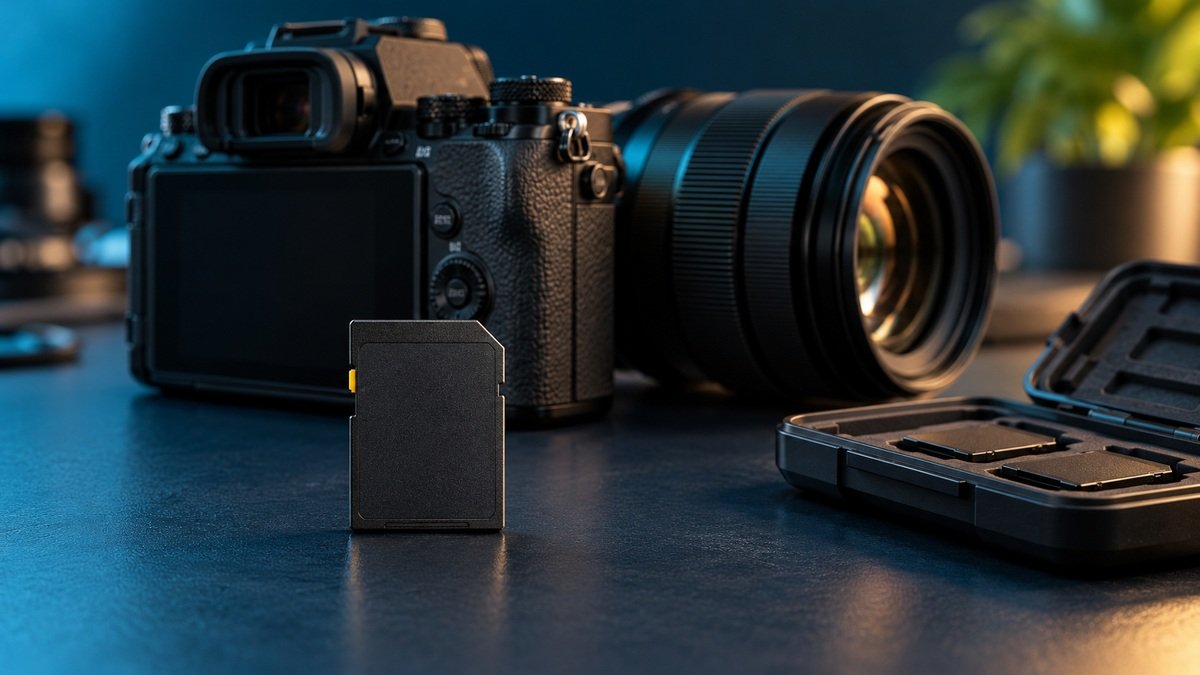
If your camera displays CARD ERROR and the card contains important photographs, stop using that card. Do not format it, take test photographs, or accept an automatic repair prompt. Follow the camera’s safe shutdown instructions, protect the card, and decide whether to arrange a recovery assessment before further access.
A wedding ceremony, a client portrait session, or a once-in-a-lifetime trip can become stressful when a camera suddenly refuses its memory card. The message identifies a problem, but it does not tell you which photographs can still be recovered. A careful next step matters more than a fast attempt to make the card work again.
Your first actions on location
- Stop taking photographs or recording video on the affected card. Tell anyone sharing the camera or laptop that the card must be preserved.
- During normal recording or transfer, wait for the card-access indication to finish and follow the camera’s shutdown procedure. Do not pull the card or battery while the access lamp is active. If the camera is stuck and activity never stops, seek model-specific guidance rather than repeatedly forcing restarts. [1]
- Remove the card safely and place it in a protective case. Do not bend it, touch the contacts, or put a loose card in a pocket with keys. [1]
- Photograph or write down the exact message using another device. Record whether it appeared during recording, playback, import, or after a format.
- Continue the shoot with a separate, compatible, known-good spare card. Keep the affected card out of the normal workflow.
For example, if one card from a wedding displays an error after the ceremony, label its case with the job name and shooting period. Do not put it back into circulation simply because the reception is starting. That preserves a clear record of which images may be missing.
What can CARD ERROR actually mean?
A memory-card error can involve the card, the reader or adapter, camera compatibility, a damaged slot, or the file system. Sandisk lists several of these possibilities in its card-detection guidance. Treat them as possible explanations, not a diagnosis of your particular card. [2]
CARD ERROR / card cannot be accessed
What it may indicate: An access problem; the message alone does not identify the cause.
Preservation-focused response: Stop writing. Record the exact message and circumstances.
Insert card / no card detected
What it may indicate: A recognition, seating, reader, compatibility or card problem.
Preservation-focused response: Check specifications separately. Do not force the card into a slot.
Card locked / write protected
What it may indicate: A write-protection issue may prevent recording.
Preservation-focused response: If you need existing images, keep the card out of use; unlocking is not recovery.
Format card / card needs formatting
What it may indicate: The device cannot use the existing card structure as expected.
Preservation-focused response: Cancel when existing files are needed. Formatting is a change to the source.
Cannot playback image
What it may indicate: A display or file-compatibility issue, or a damaged file.
Preservation-focused response: Do not conclude that every file is lost. Preserve the source.
Copies fail / card disconnects
What it may indicate: The access path or media may be unstable.
Preservation-focused response: Stop repeated attempts and seek an assessment.
Canon notes that images edited on a computer or captured by another camera may not display on some camera models. A playback failure therefore needs a different investigation from a completely undetected card. Avoid deleting apparently unreadable images to make space. [4]
Can you check the reader or camera safely?
Start with the equipment specifications and your notes. Confirm the exact card type, capacity and supported camera or reader models. A slot that physically accepts a card does not establish support for every capacity family: SD Association guidance distinguishes SD, SDHC, SDXC and SDUC host compatibility. [10]
You can test a reader or camera with a separate, known-good card containing no needed data, following its manual. This checks part of the equipment without using the affected card as a test target. If the spare also fails, investigate the equipment before drawing conclusions about the original card.
A single controlled attempt with a compatible reader may help distinguish a reader problem from a card problem, but it is optional. For the only copy of a paid assignment, consult a recovery specialist first. Do not cycle an affected card through numerous cameras, phones, adapters and computers looking for a different result.
- Use the correct reader for the actual card type. Do not force cards or adapters into a slot.
- Cancel any request to format, initialize, repair, erase or prepare the affected card.
- If the card becomes unusually hot, disconnects, stalls, or reports repeated read errors, stop the attempt.
- Do not treat an SD lock tab as a replacement for a controlled recovery workflow.
If the card opens, copy carefully and verify
If the card is readable and stable, copy accessible files to a different healthy storage device. Keep the original in place; avoid a move operation or an import setting that deletes images after import. Save recovery output away from the affected card. Microsoft’s recovery guidance requires different source and destination drives. [5]
Copy the relevant folders rather than selecting only the thumbnails you can see. Preserve the folder names and accompanying files when possible. For a paid job, make a second copy on separate storage after the first copy has been checked.
A completed copy dialog is only the beginning of verification. Open representative RAW files in compatible software, inspect full-size JPEGs, and play important video clips through to the end. Compare the delivered set with your shooting notes, expected time periods and any second-camera coverage. Missing sequences matter even when many files appear normal.
If copying freezes or repeatedly reports errors, pause the process. A file browser is not a health test, and a card that appears once may still require controlled access. Keep a note of which folders copied successfully and where the copy stopped.
Should you format, repair or scan the card?
Do not format a card containing photographs you still need. Canon’s formatting instructions warn that initialization removes existing data and advise copying data first. Those instructions concern preparing a card for use; they should not be mistaken for a way to retrieve inaccessible photographs. [3]
Similarly, avoid automatic repair tools on the only source. Sandisk explicitly warns that Windows CHKDSK can cause data loss and calls for a backup on another drive before use. Cancelling a repair prompt preserves your opportunity to decide on a recovery approach. [7]
Recovery software may be useful for some deleted or formatted files on working media. Sandisk distinguishes those cases from nonworking devices, for which it points users toward a recovery company. A software scan cannot substitute for the device being accessible. [6]
For irreplaceable images, ask an assessor whether a controlled image of the card is appropriate and whether recovery can work from that copy. The imaging decision should follow the card’s condition; making an image is not a reason to run repeated scans on unstable media. Keep installation files, temporary files and recovered photographs off the source.
What if you already formatted or kept shooting?
Stop using the card now and record what happened. Tell the assessor whether formatting took place in the camera or computer, whether an overwrite or low-level option was selected, and approximately how much new material was recorded afterwards.
Recovery can sometimes be possible after deletion or formatting on working media, but that is not a promise for your case. New writes can replace data that a recovery attempt might otherwise find. Microsoft explains this overwrite risk for deleted-file recovery. [5],[6]
Do not format again to reverse the first format. Keep the original card even if an initial scan found nothing, and retain any files already returned on separate storage. A result showing filenames or previews does not establish that the full photographs or complete video clips are usable.
When should you request a recovery assessment?
- The card holds the only copy of a wedding, commercial assignment, research trip or other irreplaceable shoot.
- It is undetected with an appropriate reader, or access is unreliable.
- The card has physical damage, liquid exposure, unusual heat or repeated read failures.
- You have already tried formatting, repairs or recovery software and the outcome is incomplete.
- You need to establish which shooting periods or file types are missing.
Keep a damaged or wet card out of service. Do not open the casing, scrape contacts, apply heat, place it in a freezer, or attempt soldering. Protect it from further handling and obtain case-specific packing advice before sending it.
Your case details
For an enquiry with DATA RECOVERY DOCTOR, prepare these details using a working device:
- Card brand, model, capacity and type, as printed on the card.
- Camera or recording-device model and the exact error message.
- When the fault began: during capture, playback, removal, import or formatting.
- Important file types and the approximate missing shooting period.
- Reader and adapter models used, plus any disconnections or unusual heat.
- Every action already attempted, including test shots, format options, repair tools and scans.
- Whether copies exist on a second card, another computer, an external drive or a verified backup.
You do not need to send private photographs with the first enquiry. A clear description helps establish the next assessment step. Recovery scope, timing and cost require an individual evaluation; this article does not supply a success percentage or guaranteed outcome.
Build a safer workflow for the next shoot
Before a future shoot, choose media qualified for the camera and recording mode, and follow safe removal procedures. Sandisk recommends host-qualified cards and appropriate handling to reduce corruption risk. Prepare spare cards before the assignment rather than formatting a card with unverified images at the venue. [8]
Give each card a clear place in your workflow: ready to shoot, used but not backed up, and verified for reuse. Label the protective case rather than changing the card itself. Store cards in protective cases and distribute a shoot across suitable cards where practical. [9]
Where your camera supports it, review its simultaneous-recording options and confirm the settings with a test before the job. Then establish an import routine: copy, verify, make an additional backup, and only afterwards decide whether a card is ready for reuse. Retire a card with recurring unexplained errors from paid assignments.
Frequently asked questions
Does CARD ERROR mean all my photographs are gone?
No. It reports an access problem, not a complete recovery diagnosis. Card, reader, compatibility and file-system issues can produce symptoms that need further assessment. Preserve the source before changing it. [2]
Should I press Format so my computer can read the card?
No, if existing photographs are needed. Formatting is a change to the source, and camera instructions warn that it removes existing data. Cancel and consider recovery first. [3]
Can I recover photographs after formatting?
Sometimes, particularly on working media, but results depend on the case. Stop recording and disclose the format method and subsequent use. Avoid another format or further writes. [5],[6]
Can a faulty adapter make a healthy card appear undetected?
Yes, an adapter or reader problem is one possible explanation. Check compatibility and test equipment separately with a spare card; do not assume that either the adapter or original card is at fault. [2]
Is Cannot Playback Image the same as a dead card?
No. Camera playback can fail for reasons such as image compatibility or editing outside the camera. Preserve files and investigate the exact symptom rather than deleting them. [4]
Should I run CHKDSK on the memory card?
Avoid it on the only recovery source. Sandisk warns that CHKDSK can cause data loss and advises a backup first. Seek a recovery assessment when important files are inaccessible. [7]
Can I save recovered photographs back onto this card?
Use a different healthy storage device. Recovery output must not overwrite the source. Keep the original card protected until the results are verified and any further assessment is complete. [5]
Can I keep shooting while I arrange recovery?
Continue with a separate compatible spare card. Do not record anything more on the affected card. Keep its case labelled so an assistant or second photographer does not accidentally put it back into service.
Discuss your recovery case
DATA RECOVERY DOCTOR — 25 Years Experience • Since 2001.
Specialist assessment using Advanced Data Recovery Technologies. Class 100 cleanroom facilities for physical HDD work when required. Recovery options depend on the media condition and case assessment.
Call / WhatsApp: 9325220081 / 8975620081
Email: datarecoverydoctormh@gmail.com
Lab: 1st Floor, Niwara, Near Ajmera Bhawan, Khadkeshwar, Chhatrapati Sambhajinagar (Aurangabad), Maharashtra – 431001.
Website: www.datarecoverydoctor.in
Send the device label photo, capacity and symptoms to start an enquiry. Do not include passwords or private files in the initial message.
Sources and further reading
Primary-source guidance checked on 11 October 2026.
- Canon: Memory Card Handling Precautions
- Sandisk: Resolve a Memory Card Not Detected or Insert Memory Card Message
- Canon: Formatting Memory Cards (IXUS 190 / IXUS 185)
- Canon: The Message Cannot Playback Image Appears
- Microsoft: Windows File Recovery
- Sandisk: Drive and Memory Card Data Recovery
- Sandisk: Windows Diagnostic Programs and CHKDSK Caution
- Sandisk: Prevent Data Corruption on SD and microSD Cards
- Sandisk: Best Practices for Using Memory Cards
- SD Association: SD, SDHC, SDXC and SDUC Card Capacity Choices