

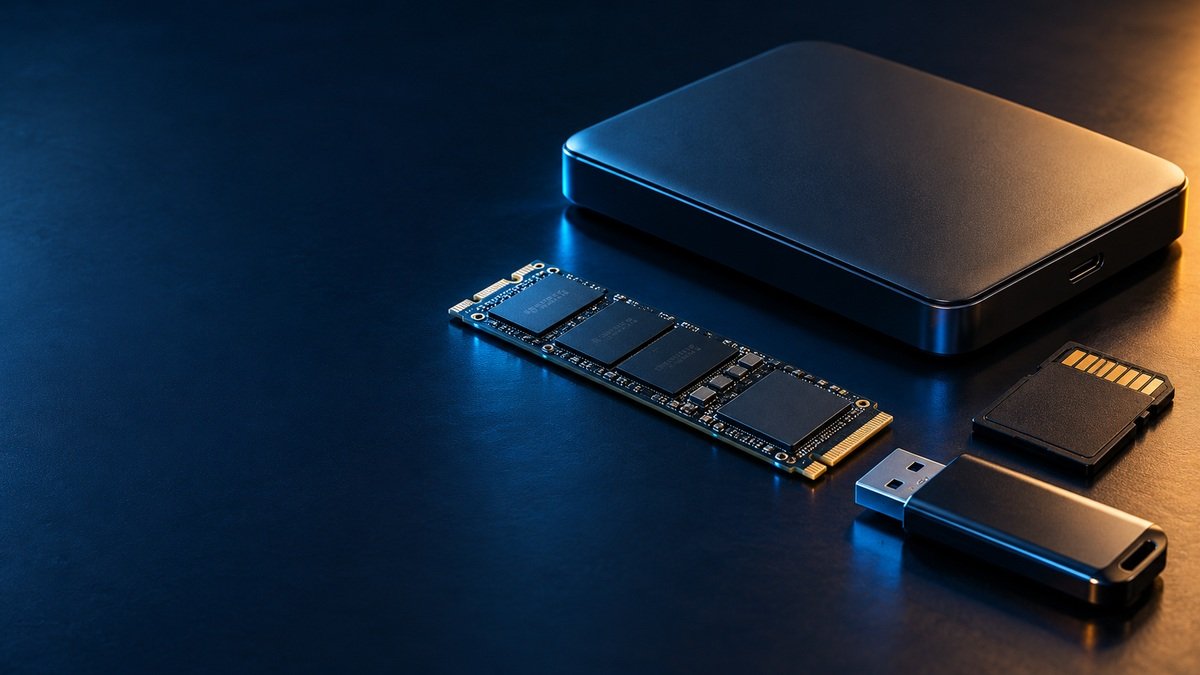
Stop new writes to the affected device. Cancel format or initialize prompts. If an HDD is grinding or repeatedly hard-clicking with access trouble, stop using it and seek specialist advice.
A missing folder, a camera error, or an undetected SSD can interrupt your day in seconds. Your first priority is to preserve what remains. This guide organizes your next actions; it does not promise that data stays recoverable for exactly 30 minutes. The outcome depends on the device, the failure, and activity after the loss.
Minutes 0–5: Stop activity on the affected storage
Avoid copying files, installing applications, taking photographs, or recording video onto the affected media. After deletion, an operating system may reuse the space occupied by lost files. Even ordinary computer use can create new files. Microsoft advises minimizing or avoiding use when trying to recover deleted files. [1]
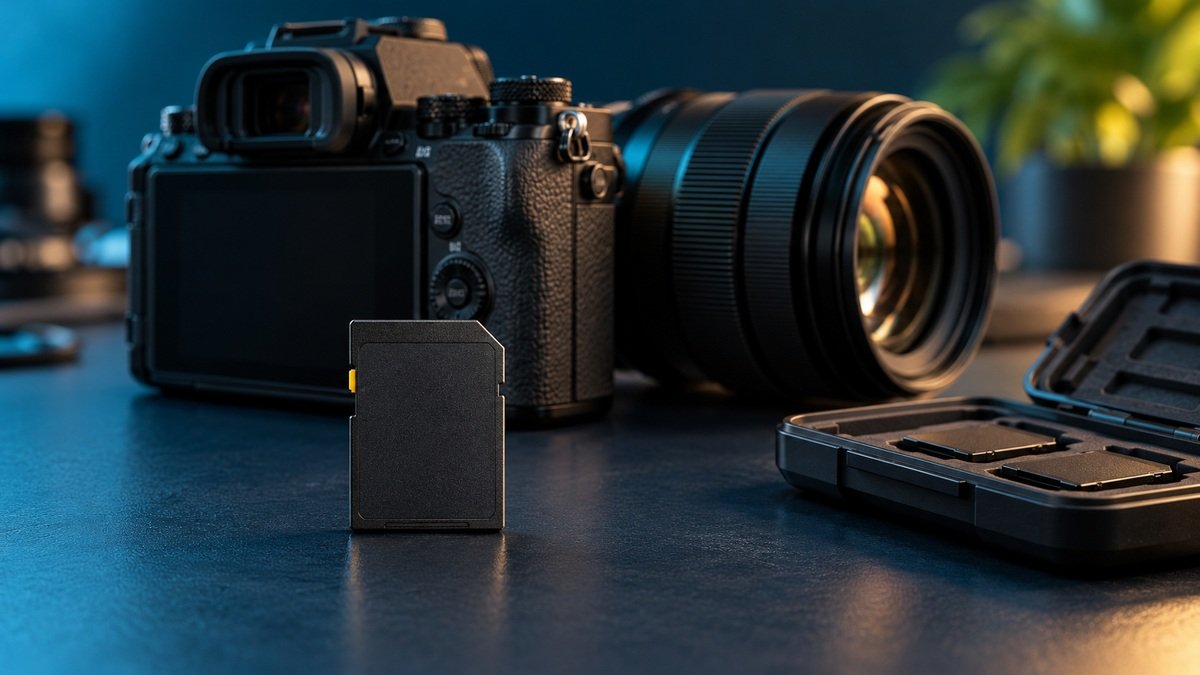
For a standalone camera memory card, stop recording and turn the camera off before removing the card. For a stable external drive, stop applications using it and safely eject it. If a drive is grinding, producing new persistent hard clicks, or has suffered a drop or liquid exposure, stop using it rather than repeatedly reconnecting it. Continued use of a grinding HDD can damage its platters. [2]
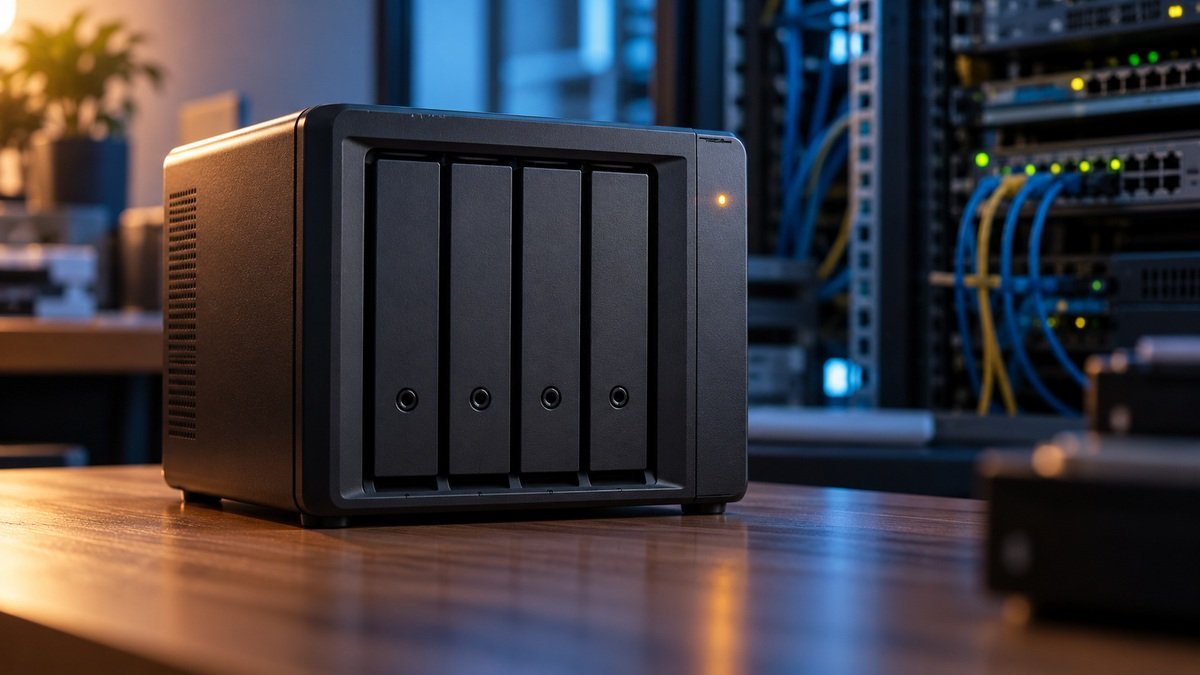
If the affected storage is inside your computer, use another device to research options or contact a laboratory. Arrange an appropriate shutdown instead of continuing normal work. A server, RAID, or NAS needs a system-specific decision: involve the responsible administrator before changing its power state or removing drives.
Minutes 5–10: Record what happened
Write down the incident while it is fresh. You do not need to make the device fail again to prove the problem. Photograph an error if it is already visible, and take a clear photograph of an accessible device label without opening the device.
- What happened immediately before the loss: deletion, formatting, a fall, a power interruption, or liquid exposure?
- What do you see now: missing files, a format prompt, an error, repeated disconnection, or an undetected device?
- What is the device type, brand, model, and capacity?
- What scans, repairs, resets, or hardware work have already been attempted?
- Which files matter most, and is there a separate backup?
Choose your next step by the symptom
Deleted files; media otherwise stable
First response: Stop new writes and check separate backups.
What it does not prove: Deletion alone does not establish recoverability.
Format or initialize prompt
First response: Cancel it if you need the existing data.
What it does not prove: The prompt does not prove the device is empty.
Grinding or persistent hard clicking with access trouble
First response: Stop using the HDD and request assessment.
What it does not prove: Sound alone does not identify the failed component.
SSD, USB drive, or card not detected
First response: Record the incident; avoid repeated experiments when files matter.
What it does not prove: Not detected does not automatically mean erased.
RAID or NAS volume unavailable
First response: Involve the administrator; preserve bay order and configuration.
What it does not prove: A rebuild is not automatically the right recovery step.
Some soft clicks and normal whirring are expected from an HDD. Persistent hard clicking or grinding is more concerning, especially with loss of access. Describe the sound and behaviour accurately rather than assuming every click means head failure. [2]
Minutes 10–20: Look for a separate copy
Use a different computer or phone to check cloud version history, a separate backup drive, email attachments, an exported project, or a colleague’s copy. Verify that the backup opens and contains the required files. Do not restore it onto the affected storage while recovery options are being assessed.
For straightforward deletion on an otherwise stable device, a brief Recycle Bin or Trash check may resolve the problem. If there are physical-failure signs, do not keep the device running just to search it. With synchronized folders, verify that the available copy has not synchronized the deletion.
Why SSD and NVMe cases need extra care
SSDs do not behave exactly like traditional HDDs after deletion. TRIM lets an operating system notify an SSD that data is no longer needed; garbage collection can reclaim that storage. These processes can limit recovery, with no universal waiting period during which deleted files are safe. [5] Avoid further use and request case-specific advice. Turning a device off cannot reverse data already erased or overwritten.
Five actions to avoid
- Formatting or initializing the affected media. Sandisk separates recovery from erasing and formatting when data is needed. [3]
- Running repair commands simply to make the drive usable. Sandisk warns that Check Disk can cause data loss and calls for a backup on another drive first. [4]
- Installing recovery software or saving recovered output onto the same affected storage. Use a separate destination to avoid overwriting material you want to recover. [1]
- Opening the sealed HDD assembly or trying freezer, tapping, or improvised heating tricks. Leave physical intervention to an appropriately equipped specialist.
- Starting an unplanned RAID rebuild, reset, or drive-order change. Involve the administrator. Removing too many drives can itself cause a volume crash. [7]
Minutes 20–30: Prepare a useful recovery enquiry
A clear description helps a laboratory choose an appropriate assessment. It is more useful than a vague request to “repair my drive.” Prepare the following details from a working device and keep the affected media protected from knocks or further use.
Your case details
- Device: type, brand, model, capacity, and a clear label photograph.
- Incident: what happened and approximately when.
- Symptoms: the exact error, sound, or detection behaviour.
- Previous attempts: software names and any repair or hardware work.
- Priority: important folders, file types, and approximate quantity.
- Backup: what exists and whether you verified it.
Keep encryption recovery keys available, but share them only through an agreed secure channel if needed. Do not post passwords, customer filenames, or sensitive screenshots publicly. For RAID/NAS, add the enclosure or controller model, RAID level if known, drive-bay order, and failure sequence.
When should you choose a laboratory?
Specialist assessment is sensible when data is irreplaceable, media has suffered physical damage, access is unstable, or the storage belongs to a business-critical array. Software may suit some accidental losses on working media. Sandisk distinguishes working cards and drives from non-working media that need a recovery company. [6]
Assessment should establish the problem, possible recovery approach, cost, and limitations before you approve work. Repairing a device for reuse and recovering its files are different goals. Ask how recovered data will be delivered and how your priority files will be checked.
Frequently asked questions
Can a deleted file be recovered?
Sometimes. Further writes, storage behaviour, and the original loss determine what remains. A file name appearing in a scan does not prove its contents are intact.
Should I format a drive so recovery software can read it?
If you need its existing data, cancel the format request. Choose a recovery approach before preparing the device for reuse. [3]
Can I try several recovery applications?
First establish whether the media is stable. Avoid repeated scans on failing media. If software is appropriate, do not install it or save output onto the affected storage. [1],[6]
Is every clicking HDD damaged?
No. Soft activity clicks can be normal. New persistent hard clicking, grinding, or access failures deserve assessment. [2]
Will stopping use guarantee recovery?
No. It can reduce additional activity but cannot undo overwrite, completed erasure, or existing physical damage.
Does the first 30 minutes determine the price or success rate?
There is no fixed 30-minute rule. These time blocks organize your response. Diagnosis, media condition, and the required work determine the estimate and realistic expectations.
Discuss your case with DATA RECOVERY DOCTOR
Send your device details, symptoms, incident history, and important-file priorities through the contact channel listed on our website. Our main laboratory is in Sambhajinagar (Aurangabad), Maharashtra. Ask for an assessment and estimate before authorizing recovery work.
25 Years Experience • Since 2001
Discuss your recovery case
DATA RECOVERY DOCTOR — 25 Years Experience • Since 2001.
Specialist assessment using Advanced Data Recovery Technologies. Class 100 cleanroom facilities for physical HDD work when required. Recovery options depend on the media condition and case assessment.
Call / WhatsApp: 9325220081 / 8975620081
Email: datarecoverydoctormh@gmail.com
Lab: 1st Floor, Niwara, Near Ajmera Bhawan, Khadkeshwar, Chhatrapati Sambhajinagar (Aurangabad), Maharashtra – 431001.
Website: www.datarecoverydoctor.in
Send the device label photo, capacity and symptoms to start an enquiry. Do not include passwords or private files in the initial message.
Sources and further reading
Primary-source guidance checked on 11 October 2026.