

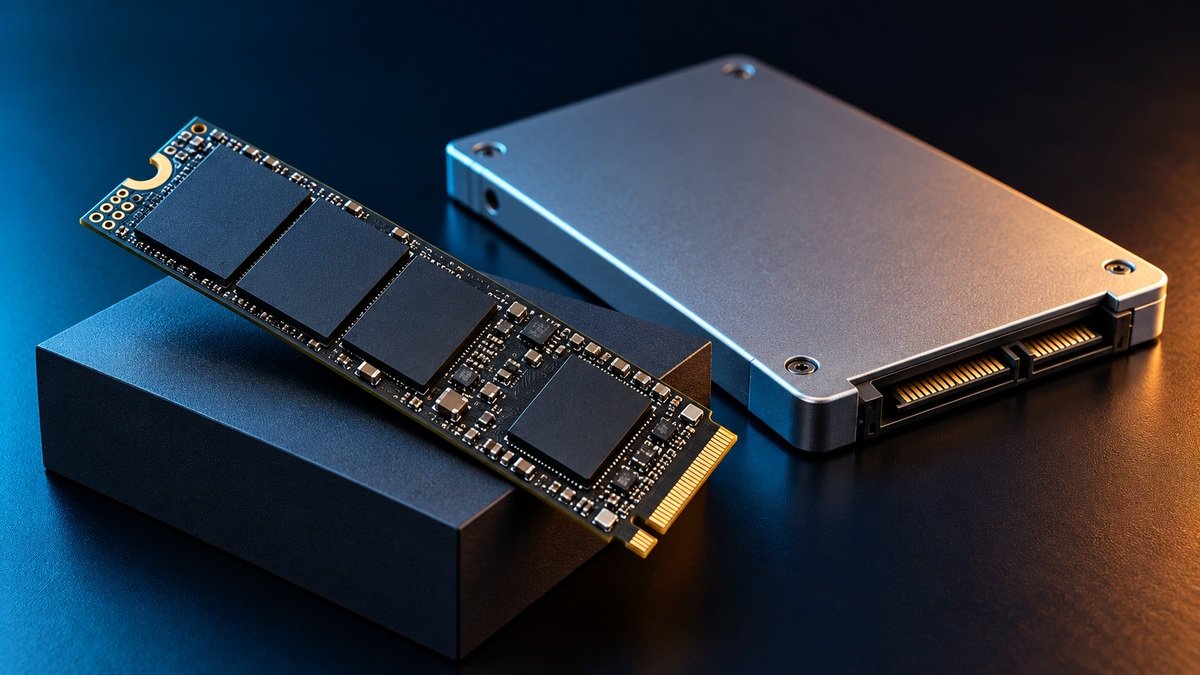
If an SSD that previously held important files is no longer detected, stop unnecessary testing. Do not initialize, format, secure-erase, reset, or reinstall Windows onto it. Record where the drive is missing and request a data-focused assessment before trying to make it usable again.
“My SSD is not detected” can describe several different situations: the laptop will not boot, the drive is absent from File Explorer, a USB enclosure cannot see it, or the system firmware does not list it. These symptoms do not have the same cause. Finding the point where detection stops is the first useful step toward deciding whether you need a connection check, access assistance, or specialist recovery.
First, identify where detection stops
Tell the laboratory what you have already observed. If the files are irreplaceable or the drive is unstable, avoid repeatedly powering it just to collect more screenshots. A photograph of an existing error and the device label is often enough to begin the discussion.
Absent from File Explorer
What it may mean: The device may still be detected at another level. Partition, mounting, or access issues need assessment.
What to record: Any existing Disk Management status, model, and capacity.
Listed in BIOS/UEFI, but Windows will not boot
What it may mean: Boot failure alone does not establish that the SSD is physically dead.
What to record: Whether the expected model appears and the exact boot error.
Absent from the relevant BIOS/UEFI storage listing
What it may mean: Connection, compatibility, power, or an SSD fault may be involved.
What to record: Computer model, SSD model, and whether it worked in this setup before.
Missing only through a USB enclosure
What it may mean: The bridge or enclosure may not support that SSD’s interface.
What to record: Enclosure model and whether it supports SATA, NVMe, or both.
Wrong capacity, intermittent detection, or read errors
What it may mean: The device needs assessment; a screenshot alone cannot identify the failed part.
What to record: Reported capacity, failure pattern, and previous attempts.
Manufacturer guidance includes checking supported connections, compatible ports, and system requirements. [2] Those are normal troubleshooting categories, not permission to keep experimenting with unstable media. A newly installed empty SSD and a suddenly failed SSD containing customer files require different decisions.
SATA, M.2 SATA, and NVMe: what is the difference?
M.2 describes a physical form factor. It does not automatically mean NVMe. An M.2 SSD can use SATA or PCIe/NVMe, and the computer’s socket or USB enclosure must support the device’s actual interface. A connector fitting into a slot does not by itself establish compatibility. Check the exact model and the system or enclosure documentation. [1]
An SSD that has never worked in a new enclosure may have a compatibility problem. A drive that worked for years and suddenly disappears deserves a different assessment. The interface helps the lab select the correct connection and recovery approach; it does not by itself determine whether files can be recovered.
What can cause an SSD to become inaccessible?
A technician may need to examine more than one layer. Possible categories include the host connection, board electronics, the controller and its service information, the NAND storage, or the file system and encryption. These are assessment categories, not a diagnosis made from the words “not detected.”
- Connection or compatibility: the cable, connector, slot, enclosure, or host system may be involved. Manufacturer checks start with those possibilities. [2]
- Controller and internal mapping: access to stored files depends on more than the NAND chips alone. The controller communicates with the host and uses internal mapping information. [3]
- Board or power-related trouble: inspect the incident history and electronics before assuming a firmware fix will help.
- NAND and read reliability: storage errors may require a different approach from a simple connection problem. [3]
- Partition, file-system, or encryption access: hardware detection does not guarantee that a volume can be opened.
Do not assume that a silent SSD is healthy. Unlike an HDD, it does not provide mechanical clicking as a warning. Describe the actual behaviour: whether the drive worked before, whether access is stable, and whether the problem followed a power event, liquid exposure, upgrade, or repair.
What to do before sending the SSD for assessment
- Stop ordinary use of the affected storage. Do not install recovery software or write its output onto the same drive.
- Photograph the accessible label and note the computer model. Do not peel labels, remove chips, or open a sealed device just to collect details.
- Record the exact symptoms and every previous attempt, including firmware updates, format requests, resets, and repair work.
- Look for a separate backup using a working device. Confirm that it contains the files you need.
- Check whether encryption is enabled and locate the relevant recovery information. Share keys only through an agreed secure channel.
- If a technician removes the SSD, use appropriate anti-static protection and protect the board and connector during transport. Manufacturer guidance recommends anti-static packaging. [5]
Actions that can make the case harder
Do not initialize a previously used SSD simply because Windows suggests it. Microsoft’s initialization procedure is for a new disk with no existing data, and warns about initializing a disk already in use. [4] A missing volume needs a preservation decision before it needs a new partition.
Do not confuse secure erase or a security reset with data recovery. Kingston documents that ATA Secure Erase removes drive data and that a TCG revert cryptographically erases the contents. These are destructive operations, not a way to retrieve missing files. [6]
Avoid blind firmware updates, improvised heating, controller swaps, and repeated power cycles. The appropriate intervention depends on the exact model and diagnosis. Tell the lab about any work already performed, even if it seemed minor.
Why chip-off is not a universal SSD solution
An SSD does not store customer files as a simple set of complete documents that can always be read directly from a removed chip. The controller manages access to NAND, mapping information, and error correction. [3] A recovery method must account for the particular device’s organisation.
Encryption and controller-specific transformations can further complicate raw NAND recovery. ACE Lab describes cases where SSD chip-off work is difficult and presents a different method for a specific burnt SSD. [9] That example is not a universal recipe. The appropriate route may involve restoring access through the original electronics or controller, or another supported method after diagnosis.
Ask a lab to explain its proposed approach and limitations. Neither “we will remove the chips” nor “we have an advanced tool” establishes that your particular SSD is recoverable. Required support and access conditions must be checked.
Encryption and TRIM: two different recovery questions
Encryption can affect access even when storage is readable
Some SSDs provide hardware encryption, while systems may also use software encryption such as BitLocker. Hardware-based encryption changes how stored data is processed and accessed. [7] The lab needs to know the actual setup, not just whether you remember setting a password.
For BitLocker, locate the recovery key through the account or organisation that manages it, using another device where appropriate. Microsoft states that its support team cannot recreate a lost recovery key. [8] A key can help unlock accessible encrypted data; it cannot repair failed electronics or reverse erasure. Avoid treating recovery as a guaranteed way around missing credentials.
TRIM relates to discarded data, not every detection failure
TRIM tells an SSD that certain data is no longer needed, and garbage collection can reclaim that storage. [5] This is especially relevant when files were deleted or the drive was formatted. A detection failure is a different symptom: it does not automatically prove that TRIM has erased the required files. Tell the lab whether deletion, formatting, or a reset occurred before or after the failure.
How a responsible recovery assessment should work
The first objective is to establish whether controlled access to the data is possible. A suitable assessment should identify the model and interface, document the incident, consider electronics and access behaviour, and explain the proposed work before approval. When supported and appropriate, the recovery process can work from an acquired image rather than repeatedly analysing the original media.
Verification should match the customer’s priorities. A list of recovered filenames is useful, but selected important documents, photographs, videos, or databases should also be checked in an agreed way. Ask what was recovered, what could not be verified, and what limitations remain.
What determines the estimate and turnaround?
Capacity is only one factor. The diagnosis, access stability, supported recovery method, encryption requirements, imaging time, and verification work can all affect the estimate. This article does not quote a fixed price or turnaround without assessing the device. Request the current terms and an estimate before authorizing work.
Your case details
- SSD brand, exact model, capacity, and a clear label photograph.
- Computer or enclosure model, and whether this setup worked previously.
- Where detection stops: File Explorer, operating system, BIOS/UEFI, or enclosure.
- Incident history and all software or hardware attempts.
- Whether BitLocker or another encryption system is involved; keep keys private.
- Your priority folders, file types, and any verified separate backup.
Frequently asked questions
Does “SSD not detected” mean the files are gone?
No. It describes an access symptom. The files may still exist, but recoverability depends on the actual cause and whether a supported access method is possible.
Is every M.2 SSD an NVMe SSD?
No. M.2 is a form factor; an M.2 SSD can use SATA or PCIe/NVMe. Confirm the exact model and interface before choosing a slot or enclosure. [1]
Can normal recovery software scan an SSD missing from the system?
Software requires a usable path to the device. If the host cannot communicate with it, ordinary file-recovery scans cannot bypass that problem. Diagnosis comes first.
Should I update the firmware or initialize the SSD?
If important existing files are missing, arrange an assessment before making those changes. Initialization is not a recovery procedure for a previously used drive. [4]
Can chip-off recover any failed SSD?
No. NAND organisation, controller behaviour, encryption, and the particular failure can limit or prevent that route. The method must fit the case. [9]
Will a BitLocker key make an undetected SSD work?
No. It can assist with decrypting accessible data, but it does not restore hardware communication or repair the media.
Should I send the drive for warranty replacement first?
Discuss recovery before surrendering the original if you need its files. Warranty processing is not the same as recovering customer data. Ask the manufacturer what happens to returned media.
Discuss your SSD or NVMe case with DATA RECOVERY DOCTOR
Send your model, symptoms, incident history, previous attempts, and important-file priorities through the contact channel listed on our website. Our main laboratory is in Sambhajinagar (Aurangabad), Maharashtra. Ask for a case-specific assessment and estimate before approving work.
25 Years Experience • Since 2001
Discuss your recovery case
DATA RECOVERY DOCTOR — 25 Years Experience • Since 2001.
Specialist assessment using Advanced Data Recovery Technologies. Class 100 cleanroom facilities for physical HDD work when required. Recovery options depend on the media condition and case assessment.
Call / WhatsApp: 9325220081 / 8975620081
Email: datarecoverydoctormh@gmail.com
Lab: 1st Floor, Niwara, Near Ajmera Bhawan, Khadkeshwar, Chhatrapati Sambhajinagar (Aurangabad), Maharashtra – 431001.
Website: www.datarecoverydoctor.in
Send the device label photo, capacity and symptoms to start an enquiry. Do not include passwords or private files in the initial message.
Sources and further reading
Primary-source guidance checked on 11 October 2026.
- Kingston: SATA and M.2 SSD compatibility FAQs
- Intel: SSD not detected in BIOS
- Kingston: Controllers, NAND, mapping, and error correction
- Microsoft: Initialize new disks
- Samsung: TRIM, garbage collection, and ESD
- Kingston SSD Manager: Secure Erase and TCG revert
- Kingston: How hardware-based SSD encryption works
- Microsoft: Find your BitLocker recovery key
- ACE Lab: An alternative recovery approach for a burnt SSD